Complete Twitch Emote Size Guide for 2026: Everything Streamers Need to Know
Master Twitch emote requirements with our comprehensive 2026 guide. Learn exact pixel dimensions (28x28, 56x56, 112x112), file formats, optimization tips, and common mistakes to avoid.
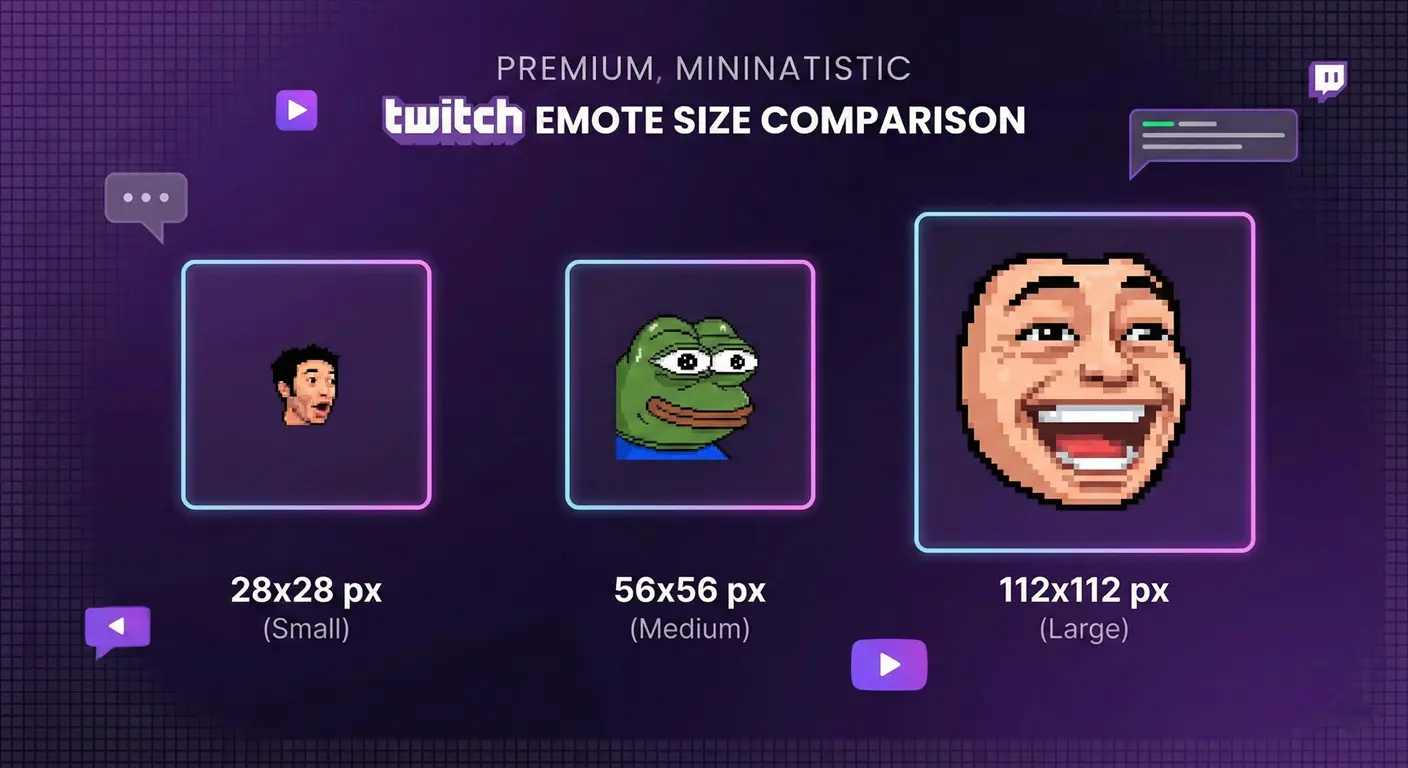
After helping thousands of streamers resize their emotes over the past year, we've learned exactly what works—and what doesn't—when it comes to Twitch emote sizes. Whether you're a brand-new Affiliate excited about your first custom emotes or an established Partner looking to level up your emote game, this guide covers everything you need to know about Twitch emote sizes in 2026.
We've seen streamers make the same mistakes over and over: uploading emotes that look great on their computer but turn into blurry messes in chat, or spending hours designing intricate details that nobody can actually see at 28 pixels. Let's make sure you don't fall into those traps.
Understanding Twitch's Three Required Emote Sizes
Here's something that catches a lot of new streamers off guard: Twitch doesn't just want one version of your emote. You need to provide three separate files, each at a specific size. And no, Twitch won't resize them for you automatically (well, not in a way that looks good, anyway).
28×28 Pixels: The Size That Actually Matters
Let's be real—this is the size your viewers will see 95% of the time. When someone types your emote in chat, it shows up at 28×28 pixels. That's tiny. We're talking about an area smaller than your fingernail on most screens.
I've seen countless emote designs that look absolutely stunning at full size but become unrecognizable blobs at 28×28. The streamer spent weeks perfecting every detail, only to realize their masterpiece looks like a smudge in actual chat. Don't let this happen to you.
Pro tip from our experience: Design your emote at 28×28 FIRST, then scale up. I know it sounds backwards, but trust us on this one. When you design small first, you're forced to focus on what actually matters: clear shapes, bold colors, and recognizable silhouettes.
56×56 Pixels: The Preview Size
This medium size appears in a few places: the emote picker menu, hover previews, and some mobile interfaces. It's double the dimensions of the small size, which means four times the pixel area. This gives you room for a bit more detail, but not as much as you might think.
Many streamers treat this as an afterthought—just an upscaled version of the 28×28. That works, but if you want your emotes to really shine, consider this size as its own thing. Add back some of the detail that got lost at 28×28, but don't go overboard.
112×112 Pixels: The "Beautiful" Size
This is where your emote gets to flex. The 112×112 version shows up on subscription pages, emote cards, and promotional materials. It's the size people see when they're deciding whether to subscribe to your channel.
At 16 times the pixel area of the 28×28 version, you can include all those lovely details: subtle gradients, fine outlines, texture effects—whatever makes your emote pop. Just remember that if those details aren't visible at 28×28, most of your community will never see them.
File Format Requirements: PNG vs. GIF
Twitch accepts two file formats, and choosing the right one is straightforward:
- PNG for static (non-animated) emotes
- GIF for animated emotes
If your emote doesn't move, use PNG. Period. PNGs support transparency (crucial for emotes), have lossless compression (no quality degradation), and are smaller in file size than equivalent GIFs.
The 1MB File Size Limit
Each of your three emote sizes must be under 1MB. For static PNG emotes, this is almost never a problem—most 112×112 PNGs are well under 100KB. Animated GIFs, on the other hand, can easily blow past 1MB, especially if you have many frames or a complex palette.
We'll cover optimization techniques for animated emotes in our dedicated animated emote guide, but the quick version is: reduce your frame count, limit your color palette, and keep your animation loops short.
Transparency: Why It Matters More Than You Think
Every emote should have a transparent background. Every. Single. One. Here's why:
Twitch chat can appear on light backgrounds, dark backgrounds, or anywhere in between depending on the user's settings and whether they're watching on mobile, desktop, or a browser extension. A white or colored background on your emote will look like an obvious ugly box in many of these contexts.
Common Transparency Mistakes
We see these issues constantly in emotes that come through our resizer:
- White fringing: The edges of your emote have a visible white or colored "halo." This happens when you remove a background but the anti-aliased edges still contain that color. The fix is to use "defringe" or "remove matte" in your image editor, or to design on a transparent background from the start.
- JPEG confusion: We get emotes saved as JPEGs more often than you'd think. JPEGs don't support transparency—they'll fill your transparent areas with white. If your image editor gave you a white background when you didn't want one, check the file format.
- Layer issues: Some streamers flatten their layers without hiding the background layer first. Always double-check your export preview before saving.
Creating Emotes That Actually Work at 28×28
This is where most emote designs fail, so let's spend some time here. At 28 pixels, you have roughly 784 pixels total to communicate your emote's meaning. That's it. Here's how to make them count:
Bold Outlines Are Your Friend
A 1-2 pixel outline around your emote (in a contrasting color) does several things:
- Separates your emote from any background
- Defines shapes that might otherwise blur together
- Makes your emote visible and recognizable at a glance
Look at Twitch's global emotes—almost all of them have clear outlines. There's a reason for that.
High Contrast Colors
Subtle color variations disappear at small sizes. That gorgeous gradient from light purple to slightly lighter purple? It's going to look like flat purple at 28×28. Choose colors that are distinctly different from each other.
Exaggerated Features
If your emote has a face, make those features BIG. Eyes should be oversized. Eyebrows should be thick and expressive. Mouths should be wide open or tightly shut—not subtly smirking.
Think cartoon, not portrait. The most successful emotes look almost caricature-like at full size but read perfectly in chat.
Technical Requirements Summary Table
Here's a quick reference you can bookmark:
| Requirement | Specification |
|---|---|
| Small Size | 28×28 pixels exactly |
| Medium Size | 56×56 pixels exactly |
| Large Size | 112×112 pixels exactly |
| File Format (Static) | PNG |
| File Format (Animated) | GIF |
| Max File Size | 1MB per size |
| Transparency | Required (use PNG or GIF) |
| Aspect Ratio | 1:1 (perfect square) |
Common Mistakes We See Every Day
After processing hundreds of thousands of emotes, certain patterns emerge. Here are the mistakes we see most often:
Mistake #1: Starting Design at 112×112
Designing at the largest size first is intuitive but wrong. You'll add details that look amazing at 112 pixels but become noise at 28. Flip your process: sketch at 28×28, refine at 56×56, and add finishing touches at 112×112.
Mistake #2: Too Much Detail
Your emote doesn't need individual eyelashes, nostril shading, or texture on every surface. All of that becomes visual noise at chat size. Simplify ruthlessly.
Mistake #3: Text in Emotes
Unless it's a single letter or very simple word, text doesn't work in emotes. At 28×28, most text is completely illegible. If you need to communicate a word, consider making it the entire focus of the emote with extra-thick lettering.
Mistake #4: Thin Lines
Any line thinner than 1 pixel at 28×28 will become invisible or anti-alias into a fuzzy blur. Make your lines thick.
How to Test Your Emotes Before Uploading
Never upload an emote without testing it first. Here's our testing process:
- Zoom out to actual size: In your image editor, view your emote at 100% zoom (actual pixels). This shows you exactly what viewers will see.
- Test on multiple backgrounds: Put your emote on white, dark gray, and your typical Twitch chat background color. Does it work on all of them?
- Squint test: Literally squint at your 28×28 version. If you can still tell what it is, you're in good shape.
- Phone test: View your emote on your phone screen. Mobile users make up a significant portion of Twitch viewers.
- Ask someone else: Show your emote to a friend who hasn't seen your design process. Can they tell what it's supposed to be?
Using StreamEmote for Perfect Sizing
We built StreamEmote because we were frustrated with the existing options. Most image resizers use basic algorithms that turn emotes into blurry messes. Others require uploads to sketchy servers. Some even add watermarks.
Our tool is different:
- 100% client-side processing: Your images never leave your device
- High-quality downscaling: We use advanced Canvas resampling for the best possible quality at each size
- One-click multi-platform export: Get Twitch, Kick, and Discord sizes in one ZIP file
- Completely free, no watermarks: Because emote resizing shouldn't cost money
Just drag in your source image (we recommend at least 256×256 for best results), preview how it looks on light and dark backgrounds, and download all sizes in one click.
Final Thoughts
Creating great Twitch emotes isn't just about meeting technical requirements—it's about understanding how people will actually see and use your emotes. The technical specs are the easy part; the hard part is designing something that looks incredible at 28 pixels while still being recognizable, expressive, and uniquely yours.
Start small. Test often. Don't be afraid to simplify. And when you're ready to resize, we'll be here to help.
Have questions about emote sizing? Drop by our Discord or reach out on Twitter. We love helping streamers get their emotes looking perfect.
About the Author
StreamEmote Team
Written by the StreamEmote Team — developers and content creators dedicated to helping streamers succeed. We've processed hundreds of thousands of emotes and share our expertise to help you create the best content for your channel.
Learn more about us →Ready to Resize Your Emotes?
Use our free tool to create perfectly sized emotes for Twitch, Kick, and Discord. No watermarks, no uploads—your images never leave your device.
Try the Emote Resizer →Related Articles
How to Create Animated Twitch Emotes: The Complete 2026 Guide
Learn to create smooth, engaging animated Twitch emotes that meet all requirements. Covers GIF optimization, frame rates, file size tricks, and recommended software.
10 Professional Emote Design Tips That Actually Work (From Real Experience)
Discover the secrets pro emote artists use to create memorable, readable Twitch emotes. Practical tips based on real experience helping thousands of streamers.