How to Create Animated Twitch Emotes: The Complete 2026 Guide
Learn to create smooth, engaging animated Twitch emotes that meet all requirements. Covers GIF optimization, frame rates, file size tricks, and recommended software.
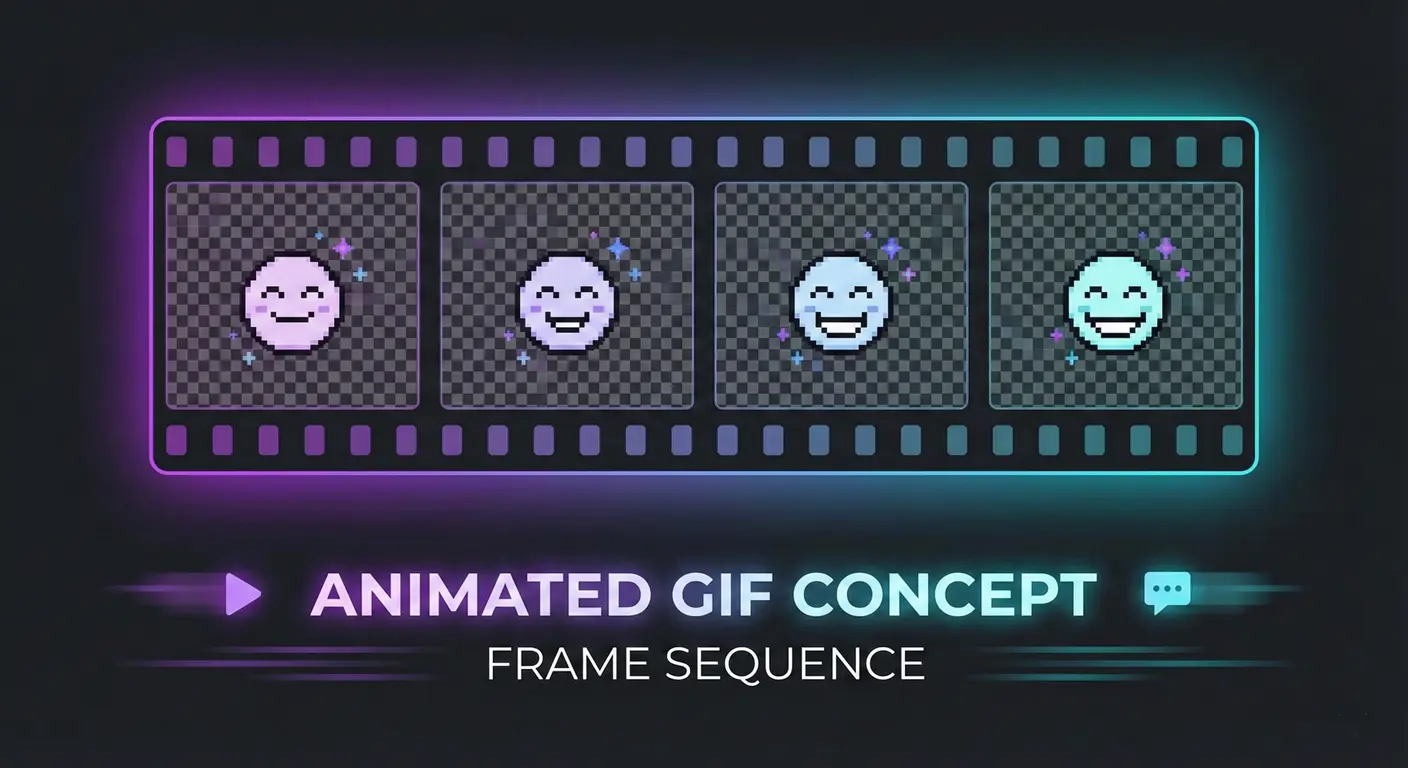
Animated emotes are the crown jewels of any Twitch channel. A well-crafted animated emote can express emotions that static images simply can't—the excited wiggle, the dramatic head shake, the satisfying loop of approval. But creating animated emotes that look great AND meet Twitch's strict requirements? That's where most streamers struggle.
I've spent countless hours optimizing animated emotes for streamers, and I've learned every trick in the book for squeezing quality animations into Twitch's tight file size limits. This guide shares everything I know about creating animated emotes that actually work.
The Unique Challenges of Animated Emotes
Static emotes are relatively straightforward: make them look good at 28×28, save as PNG, done. Animated emotes add several layers of complexity:
- You're working with multiple frames, not just one image
- File sizes balloon quickly and easily exceed 1MB
- Animation quality can degrade significantly when compressed
- What looks smooth at one size might stutter at another
- GIF format limitations (256 color palette) create additional constraints
Don't let this discourage you. Animated emotes are absolutely achievable—they just require a more strategic approach.
Understanding Twitch's Animated Emote Requirements
Before diving into creation, let's be crystal clear on what Twitch requires:
Size Requirements (Same as Static)
- 28×28 pixels (small)
- 56×56 pixels (medium)
- 112×112 pixels (large)
File Format
Animated emotes must be in GIF format. There's no alternative here—APNG or WebP animations aren't supported yet (though we keep hoping).
File Size Limit
1MB per size. This is where most animated emotes fail. A simple 60-frame animation at 112×112 can easily hit 2-3MB before optimization. We'll cover how to stay under this limit without sacrificing quality.
Frame Rate Considerations
Twitch doesn't specify a maximum frame rate, but there are practical limits. Too many frames = larger file size = failed upload. For most emotes, 10-20 frames total is the sweet spot.
Planning Your Animation: Think Simple First
The number one mistake with animated emotes is overcomplicating the animation. Before you create a single frame, ask yourself:
"Can I communicate this emotion/action with fewer than 10 frames?"
The best animated emotes often have surprisingly simple animations:
- A simple bounce: 4-6 frames, scales up and down
- Eyes blinking: 3-4 frames of eye closing and opening
- Wiggle/shake: 4 frames rotating slightly left and right
- Sparkle effect: 3-4 frames with stars appearing and fading
These simple animations read clearly at 28×28 and loop seamlessly. Complex multi-scene animations often become confusing blurs at chat size.
Frame Rate and Timing Deep Dive
Understanding frame timing is crucial for smooth animations that don't eat up your file size budget.
Standard Animation Frame Rates
- TV/Film: 24 fps
- Video games: 30-60 fps
- Twitch emotes: 10-15 fps is plenty
You don't need 24+ fps for an emote. At 28×28 pixels, the difference between 15 fps and 24 fps is barely noticeable, but the file size difference is massive.
Frame Delay in GIFs
GIF frame delays are measured in hundredths of a second. Common values:
- 10 (0.1s): 10 fps, good for subtle animations
- 8 (0.08s): ~12 fps, nice balance of smoothness and size
- 5 (0.05s): 20 fps, for snappy quick animations
Variable Timing for Effect
Here's a pro tip: you don't need constant frame timing. For a bouncing emote, you might use:
- Frames 1-2 (squash): 5ms each (fast)
- Frames 3-4 (rise): 8ms each (medium)
- Frames 5-6 (peak): 12ms each (hang in the air)
- Frames 7-8 (fall): 6ms each (accelerating down)
This creates a more natural, dynamic feel without adding frames.
Color Palette Optimization
GIF format supports a maximum of 256 colors per frame. This limitation is actually your friend when it comes to file size—fewer colors = smaller files.
Strategies for Reducing Colors
- Design with limited palettes from the start: If you only use 32 colors, your GIF will be much smaller than one with 200 colors.
- Avoid gradients: Smooth gradients eat through your color budget fast. Use flat colors or dithered approximations instead.
- Embrace the aesthetic: Some of the most iconic animated emotes have that retro, low-color look. It's not a limitation; it's a style.
Color Reduction Techniques
- Global palette: Use the same 256-color palette for all frames. This improves compression and visual consistency.
- Dithering: Carefully applied dithering can simulate more colors, but too much adds file size and visual noise.
- Posterization: Reducing color depth before GIF export can help you see exactly how colors will combine.
Software Recommendations for Animated Emotes
Your choice of software significantly impacts your workflow and output quality. Here's what works best:
For Pixel Art Animations
Aseprite ($20, one-time purchase) is the gold standard. It's designed specifically for pixel art and sprite animation, with excellent GIF export options. If you're doing pixel-style emotes, this is the tool.
For Hand-Drawn/Illustrated Animations
Procreate (iPad, $13 one-time) has surprisingly capable animation features. For streamers who already use Procreate for art, it's a natural choice. Export as GIF directly or as frame sequence for optimization elsewhere.
Adobe Photoshop (subscription) works but has a clunky animation workflow. If you already have it, the Frame Animation panel gets the job done.
For Free Options
Photopea (free, browser-based) is essentially Photoshop in your browser. Has the same animation capabilities and exports to GIF.
GIMP (free, desktop) can do animation, but the workflow is not intuitive. Each frame is a separate layer, and the lack of onion skinning makes smooth animations harder.
For Optimization
ezgif.com is invaluable for squeezing file sizes after export. It offers frame removal, color reduction, lossy compression, and more—all for free in your browser.
Step-by-Step Animation Workflow
Here's my personal workflow for creating animated emotes that meet Twitch's requirements:
Step 1: Sketch the Key Frames
Before touching software, I rough out the main poses on paper or in a quick sketch app. For a bounce animation: starting position, peak squash, maximum height, landing squash. Four key frames.
Step 2: Create at 112×112 (or Larger)
Work at the largest size or even 2x (224×224). You'll scale down later, and starting large preserves options.
Step 3: Animate the Keys First
Get your key frames working with rough timing. Does the motion read? Is the emotion clear? Adjust before adding in-betweens.
Step 4: Add In-Between Frames (Sparingly)
Only add frames where the motion needs smoothing. Every frame costs file size. For a 4-key bounce, you might add 2 in-betweens for 6 total frames.
Step 5: Export and Check File Size
Export as GIF at 112×112. Is it under 300KB? Great—you have headroom. Over 800KB? Time to optimize before proceeding.
Step 6: Optimize Aggressively
Use ezgif or similar tools to:
- Reduce colors to minimum acceptable level
- Apply lossy compression (20-30 usually invisible)
- Remove unnecessary frames
- Optimize frame disposal and transparency
Step 7: Scale to All Sizes
Once your 112×112 is optimized, scale to 56×56 and 28×28. Check that the animation still reads at small size.
Troubleshooting Common Problems
"My GIF is too big!"
Try these in order:
- Reduce frame count (cut any frames that aren't essential)
- Reduce color palette (64 or 32 colors often look fine)
- Add lossy compression in ezgif (start with 20)
- Shorten the animation loop
- Simplify the design (remove small details)
"My animation looks choppy at 28×28"
Small sizes hide subtle movements. You may need to:
- Increase the movement range (bigger bounce, wider shake)
- Add slightly more in-between frames for the small version specifically
- Slow down the timing so each frame displays longer
"Colors look wrong after GIF export"
GIF's 256-color limit is the culprit. Solutions:
- Use a global palette that prioritizes your key colors
- Reduce colors before export so you control the conversion
- Avoid smooth gradients in the original design
Animated Emote Ideas That Work
Based on what I've seen succeed for streamers, here are animation concepts that translate well to emote size:
- Simple reaction loops: Nodding, head shaking, blinking
- Bouncing/dancing: Character moving up and down with personality
- Sparkle/glow effects: Stars or particles appearing around a static image
- Wiggle/jiggle: Slight rotation back and forth
- Transition reveals: Something unfolding or appearing
- Eyeball emotes: Eyes looking around, blinking
What doesn't work as well: Complex scene changes, lots of moving parts, subtle gradual changes, text appearing.
Final Thoughts
Animated emotes require more effort than static ones, but the payoff is worth it. A distinctive animated emote becomes part of your channel's identity—viewers will love spamming it in chat, and it creates genuine emotional connection.
Start simple. Master the basics of smooth loops and file optimization before attempting complex animations. And remember: at 28×28 pixels, less is almost always more.
When you're ready to resize your animated emotes for all platforms, our StreamEmote tool handles GIFs as well as static images. Just drag in your optimized GIF, and we'll generate the sizes you need.
About the Author
StreamEmote Team
Written by the StreamEmote Team — developers and content creators dedicated to helping streamers succeed. We've processed hundreds of thousands of emotes and share our expertise to help you create the best content for your channel.
Learn more about us →Ready to Resize Your Emotes?
Use our free tool to create perfectly sized emotes for Twitch, Kick, and Discord. No watermarks, no uploads—your images never leave your device.
Try the Emote Resizer →Related Articles
Complete Twitch Emote Size Guide for 2026: Everything Streamers Need to Know
Master Twitch emote requirements with our comprehensive 2026 guide. Learn exact pixel dimensions (28x28, 56x56, 112x112), file formats, optimization tips, and common mistakes to avoid.
10 Professional Emote Design Tips That Actually Work (From Real Experience)
Discover the secrets pro emote artists use to create memorable, readable Twitch emotes. Practical tips based on real experience helping thousands of streamers.